Setup Superawesome Ads (Unity 2021 and SA 8.5.3 or higher)
Basic setup for SA in an empty project.
Android
The test was done in Unity version is 2021.3.18 but it should be working with Unity version 2020.
- Create an empty project
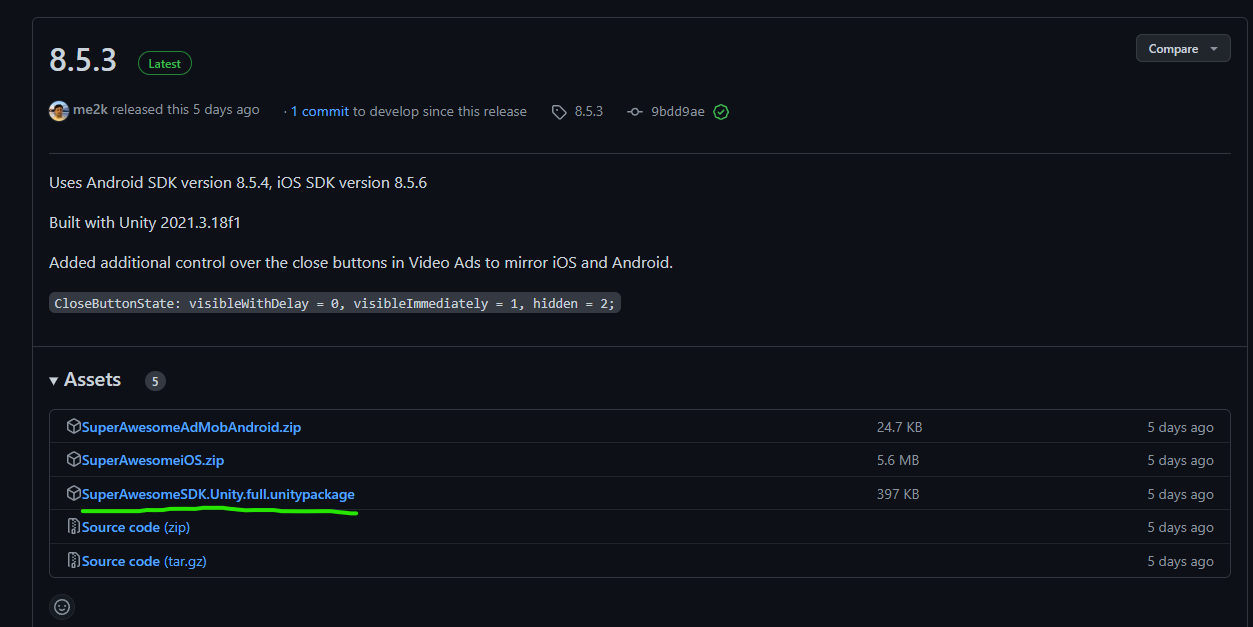
- Download and Import Unity package SA 8.5.3 (higher versions should work the same way )

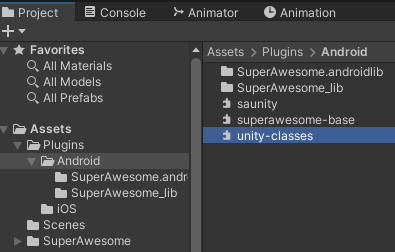
- Depending on the Unity version delete unity-classes.jar file from the Plugins/Android folder if it causes duplicated method issues. In Unity 2021.3.18 it needs to be deleted.

- Create a script that will handle the initialization and launching of the SA ads that contain the following code. The script is a tweaked version of the one from the Interstitials tutorial
In line 6 add your Placement IDusing tv.superawesome.sdk.publisher; using UnityEngine; public class MainScript : MonoBehaviour { private const int PlacementId = 30473; private void Awake() { AwesomeAds.init(true); } private void Start() { // set configuration production SAInterstitialAd.setConfigurationProduction(); // to display test ads SAInterstitialAd.enableTestMode(); // lock orientation to portrait or landscape SAInterstitialAd.setOrientationPortrait(); // enable or disable the android back button SAInterstitialAd.enableBackButton(); //set callbacks so we play an ad only after it's loaded SetCallbacks(); } public void PlayInterstitial() { // start loading ad data for a placement SAInterstitialAd.load(PlacementId); Debug.Log("Try to play ad..."); } private void SetCallbacks() { SAInterstitialAd.setCallback(SAInterstialAd_OnCallback); } private void SAInterstialAd_OnCallback(int placementId, SAEvent eventType) { Debug.Log($"Handling Interstitial callback for id {placementId}..."); switch (eventType) { case SAEvent.adLoaded: // called when an ad has finished loading Debug.Log("Ad loaded callback..."); SAInterstitialAd.play(PlacementId); break; case SAEvent.adEmpty: // called when the request was successful but the server returned no ad Debug.LogWarning("Ad empty callback..."); break; case SAEvent.adFailedToLoad: // called when an ad could not be loaded Debug.LogWarning("Ad failed to load callback..."); break; case SAEvent.adShown: // called when an ad is first shown Debug.Log("Ad shown callback..."); break; case SAEvent.adFailedToShow: // called when an ad fails to show Debug.LogWarning("Ad failed to show callback..."); break; case SAEvent.adClicked: // called when an ad is clicked Debug.Log("Ad clicked callback..."); break; case SAEvent.adEnded: // called when a video ad has ended playing (but hasn't yet closed) Debug.Log("Ad ended callback..."); break; case SAEvent.adClosed: // called when a fullscreen ad is closed Debug.Log("Ad closed callback..."); break; } } } - Call the PlayInterstitial() method from the above script via a button from the scene.
The following sections are automated in our main projects
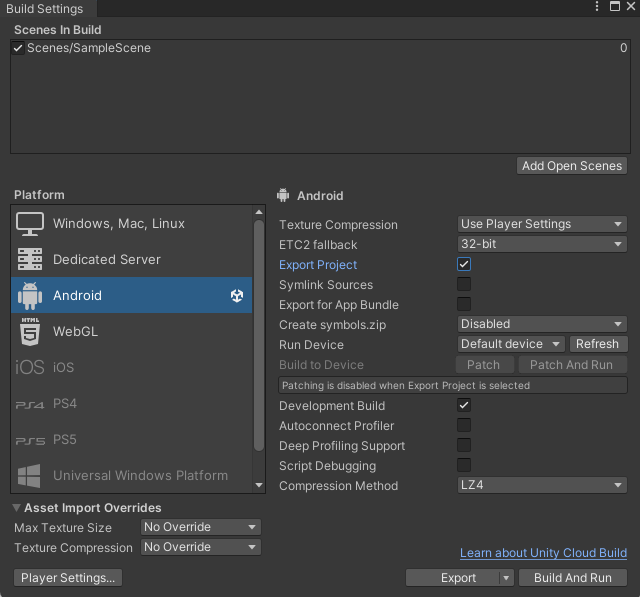
- In Build Settings activate the Export Project checkbox and click Export.

- Open the exported project in Android Studio (if asked use Android SDK )
-
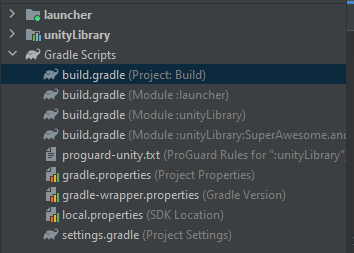
Open the Gradle file of the project ( here the project was in the Build folder )

- Add mavenCentral() into the repositories on lines 4 and 20
- Add classpath "org.jetbrains.kotlin:kotlin-gradle-plugin:1.6.20" to line 15
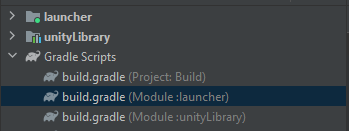
allprojects { buildscript { repositories { mavenCentral() google() jcenter() } dependencies { // If you are changing the Android Gradle Plugin version, make sure it is compatible with the Gradle version preinstalled with Unity // See which Gradle version is preinstalled with Unity here https://docs.unity3d.com/Manual/android-gradle-overview.html // See official Gradle and Android Gradle Plugin compatibility table here https://developer.android.com/studio/releases/gradle-plugin#updating-gradle // To specify a custom Gradle version in Unity, go do "Preferences > External Tools", uncheck "Gradle Installed with Unity (recommended)" and specify a path to a custom Gradle version classpath 'com.android.tools.build:gradle:4.0.1' classpath 'org.jetbrains.kotlin:kotlin-gradle-plugin:1.6.20' } } repositories { mavenCentral() google() jcenter() flatDir { dirs "${project(':unityLibrary').projectDir}/libs" } } } task clean(type: Delete) { delete rootProject.buildDir } - Open the build.gradle(Module :launcher) file

- Add the missing directive at the top of the script ( line2 )
apply plugin: 'kotlin-android'
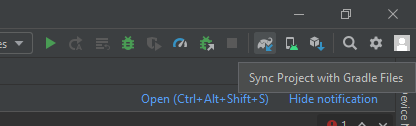
- Click the Sync Project with Gradle Files button and wait for Android Studio to download/import all the required packages.

- Go back to Unity, click Export again then Build or Build & Run and ads should be working when clicking the button.
iOS
- Create empty Unity project (used version is 2021.3.18)
- Download Unity package SA 8.5.3 (higher versions will probably work)
- Download SuperAwesomeiOS.zip (will be required later)
- Import package in Unity
- Copy paste MainScript.cs (script is a tweaked version of the one from their tutorial) Interstitials tutorial
using tv.superawesome.sdk.publisher; using UnityEngine; public class MainScript : MonoBehaviour { private const int PlacementId = 30473; private void Awake() { AwesomeAds.init(true); } private void Start() { // set configuration production SAInterstitialAd.setConfigurationProduction(); // to display test ads SAInterstitialAd.enableTestMode(); // lock orientation to portrait or landscape SAInterstitialAd.setOrientationPortrait(); // enable or disable the android back button SAInterstitialAd.enableBackButton(); //set callbacks so we play an ad only after it's loaded SetCallbacks(); } public void PlayInterstitial() { // start loading ad data for a placement SAInterstitialAd.load(PlacementId); Debug.Log("Try to play ad..."); } private void SetCallbacks() { SAInterstitialAd.setCallback(SAInterstialAd_OnCallback); } private void SAInterstialAd_OnCallback(int placementId, SAEvent eventType) { Debug.Log($"Handling Interstitial callback for id {placementId}..."); switch (eventType) { case SAEvent.adLoaded: // called when an ad has finished loading Debug.Log("Ad loaded callback..."); SAInterstitialAd.play(PlacementId); break; case SAEvent.adEmpty: // called when the request was successful but the server returned no ad Debug.LogWarning("Ad empty callback..."); break; case SAEvent.adFailedToLoad: // called when an ad could not be loaded Debug.LogWarning("Ad failed to load callback..."); break; case SAEvent.adShown: // called when an ad is first shown Debug.Log("Ad shown callback..."); break; case SAEvent.adFailedToShow: // called when an ad fails to show Debug.LogWarning("Ad failed to show callback..."); break; case SAEvent.adClicked: // called when an ad is clicked Debug.Log("Ad clicked callback..."); break; case SAEvent.adEnded: // called when a video ad has ended playing (but hasn't yet closed) Debug.Log("Ad ended callback..."); break; case SAEvent.adClosed: // called when a fullscreen ad is closed Debug.Log("Ad closed callback..."); break; } } } - Create some sort of UI that should call PlayInterstitial() method from above script
- Open xcode and drag and drop the 4 files from SuperAwesomeiOS.zip into the Framework and iPhone tabs (check copy files if needed checkbox)
- The files from SuperAwesomeiOS.zip should not be embeded into the Framework but should be embeded into the iPhone project
- Disable bitcode from xcode settings(project's root/setting file and find your way to the “Build Settings” tab. Use the search bar to find “Bitcode” and change the setting to disabled)
- Make sure you are using correct bundle id and team settings
- Build & run on a device/simulator
Note: SuperAwesomeiOS.zip will eventually be included in the Unity package so step 3 will not be required and steps 7-9 will be done automatically but are not done at the time of writing this guide.