# Android
The test was done in Unity version is 2021.3.18 but it should be working with Unity version 2020.
1. Create an empty project
2. Download and Import Unity package [SA 8.5.3](https://github.com/SuperAwesomeLTD/sa-unity-sdk/releases/tag/8.5.3) (higher versions should work the same way )[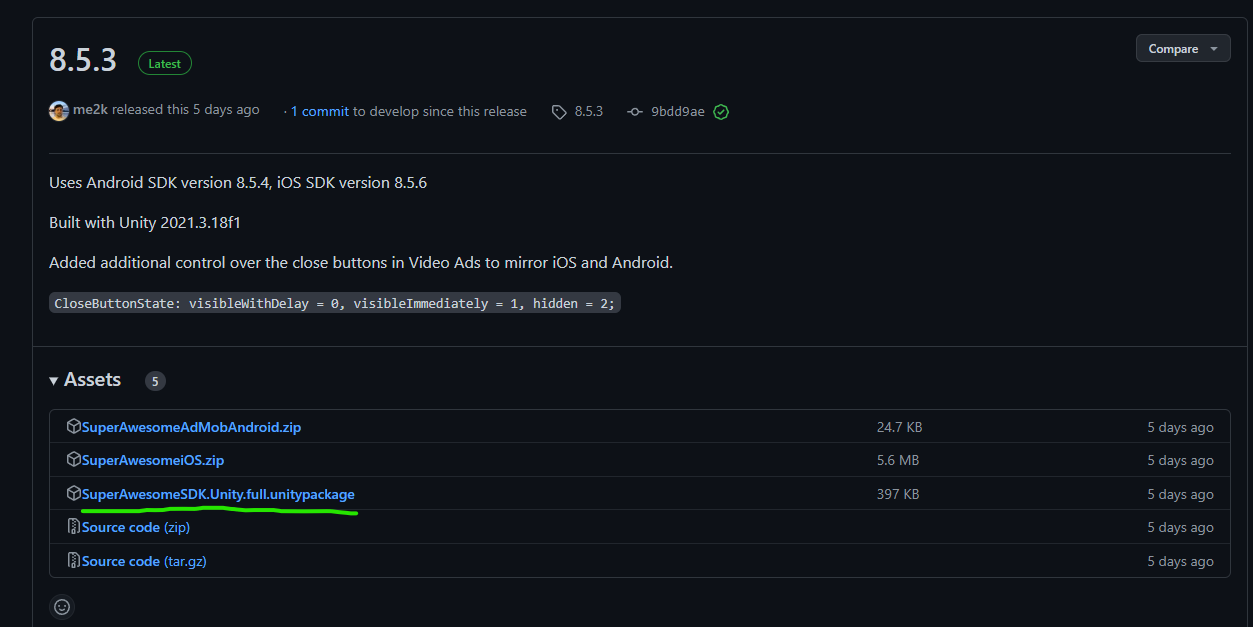](https://docs.quadom.com/uploads/images/gallery/2023-03/BUUimage.png)
3. Depending on the Unity version delete * **unity-classes.jar** * file from the ***Plugins/Android*** folder if it causes duplicated method issues. In Unity 2021.3.18 it needs to be deleted.
[](https://docs.quadom.com/uploads/images/gallery/2023-03/7Pgimage.png)
4. Create a script that will handle the initialization and launching of the SA ads that contain the following code. The script is a tweaked version of the one from the [Interstitials tutorial](https://sa-unity-sdk.superawesome.tv/docs/interstitial-ads)
**In line 6 add your Placement ID**```c#
using tv.superawesome.sdk.publisher;
using UnityEngine;
public class MainScript : MonoBehaviour
{
private const int PlacementId = 30473;
private void Awake()
{
AwesomeAds.init(true);
}
private void Start()
{
// set configuration production
SAInterstitialAd.setConfigurationProduction();
// to display test ads
SAInterstitialAd.enableTestMode();
// lock orientation to portrait or landscape
SAInterstitialAd.setOrientationPortrait();
// enable or disable the android back button
SAInterstitialAd.enableBackButton();
//set callbacks so we play an ad only after it's loaded
SetCallbacks();
}
public void PlayInterstitial()
{
// start loading ad data for a placement
SAInterstitialAd.load(PlacementId);
Debug.Log("Try to play ad...");
}
private void SetCallbacks()
{
SAInterstitialAd.setCallback(SAInterstialAd_OnCallback);
}
private void SAInterstialAd_OnCallback(int placementId, SAEvent eventType)
{
Debug.Log($"Handling Interstitial callback for id {placementId}...");
switch (eventType)
{
case SAEvent.adLoaded:
// called when an ad has finished loading
Debug.Log("Ad loaded callback...");
SAInterstitialAd.play(PlacementId);
break;
case SAEvent.adEmpty:
// called when the request was successful but the server returned no ad
Debug.LogWarning("Ad empty callback...");
break;
case SAEvent.adFailedToLoad:
// called when an ad could not be loaded
Debug.LogWarning("Ad failed to load callback...");
break;
case SAEvent.adShown:
// called when an ad is first shown
Debug.Log("Ad shown callback...");
break;
case SAEvent.adFailedToShow:
// called when an ad fails to show
Debug.LogWarning("Ad failed to show callback...");
break;
case SAEvent.adClicked:
// called when an ad is clicked
Debug.Log("Ad clicked callback...");
break;
case SAEvent.adEnded:
// called when a video ad has ended playing (but hasn't yet closed)
Debug.Log("Ad ended callback...");
break;
case SAEvent.adClosed:
// called when a fullscreen ad is closed
Debug.Log("Ad closed callback...");
break;
}
}
}
```
5. Call the ***PlayInterstitial()*** method from the above script via a button from the scene.
#### **The following sections are automated in our main projects**
6. In Build Settings activate the ***Export Project** * checkbox and click ***Export**.*[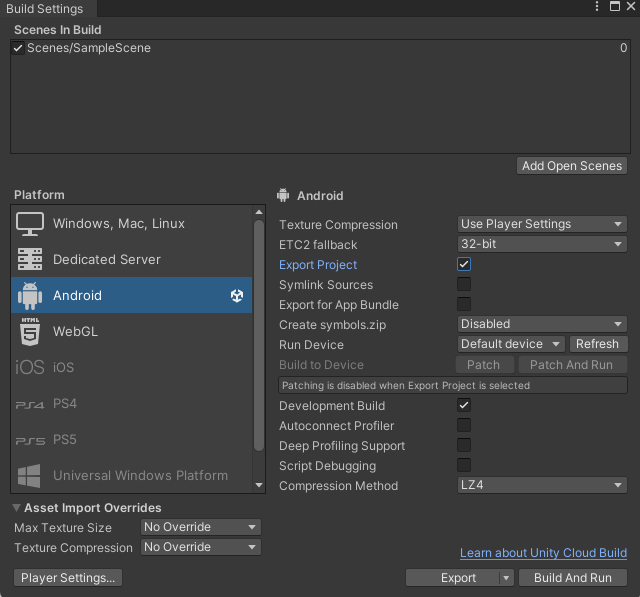](https://docs.quadom.com/uploads/images/gallery/2023-03/xMMimage.png)
7. Open the exported project in Android Studio *(if asked use Android SDK )*
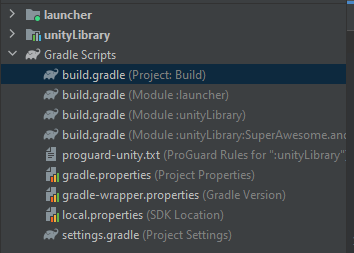
8. Open the Gradle file of the project ( here the project was in the **Build** folder )
[](https://docs.quadom.com/uploads/images/gallery/2023-03/1heimage.png)
9. Add ***mavenCentral()*** *into the* **repositories** on ***lines 4 and 20***
10. Add **classpath "org.jetbrains.kotlin:kotlin-gradle-plugin:1.6.20"** to ***line 15*** ```c
allprojects {
buildscript {
repositories {
mavenCentral()
google()
jcenter()
}
dependencies {
// If you are changing the Android Gradle Plugin version, make sure it is compatible with the Gradle version preinstalled with Unity
// See which Gradle version is preinstalled with Unity here https://docs.unity3d.com/Manual/android-gradle-overview.html
// See official Gradle and Android Gradle Plugin compatibility table here https://developer.android.com/studio/releases/gradle-plugin#updating-gradle
// To specify a custom Gradle version in Unity, go do "Preferences > External Tools", uncheck "Gradle Installed with Unity (recommended)" and specify a path to a custom Gradle version
classpath 'com.android.tools.build:gradle:4.0.1'
classpath 'org.jetbrains.kotlin:kotlin-gradle-plugin:1.6.20'
}
}
repositories {
mavenCentral()
google()
jcenter()
flatDir {
dirs "${project(':unityLibrary').projectDir}/libs"
}
}
}
task clean(type: Delete) {
delete rootProject.buildDir
}
```
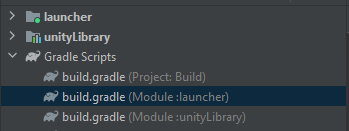
11. Open the ** build.gradle(Module :launcher) ** file
[](https://docs.quadom.com/uploads/images/gallery/2023-03/j0zimage.png)
12. Add the missing directive at the top of the script *( line2 )*
```
apply plugin: 'kotlin-android'
```
13. Click the **S*****ync Project with Gradle Files *** button and wait for Android Studio to download/import all the required packages.
[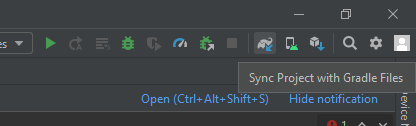](https://docs.quadom.com/uploads/images/gallery/2023-03/558image.png)
14. Go back to Unity, click Export again then Build or Build & Run and ads should be working when clicking the button.