
Android
These are the steps that the developers from SuperAwseome ads provided us over a Zoom meeting to help us make the SDK work in an empty project. Deviating from this from here on we can try to improvize at our own risk. The test was done in Unity version is 2021.3.18 but it should be working with Unity versionsversion 2020.
- Create an empty project
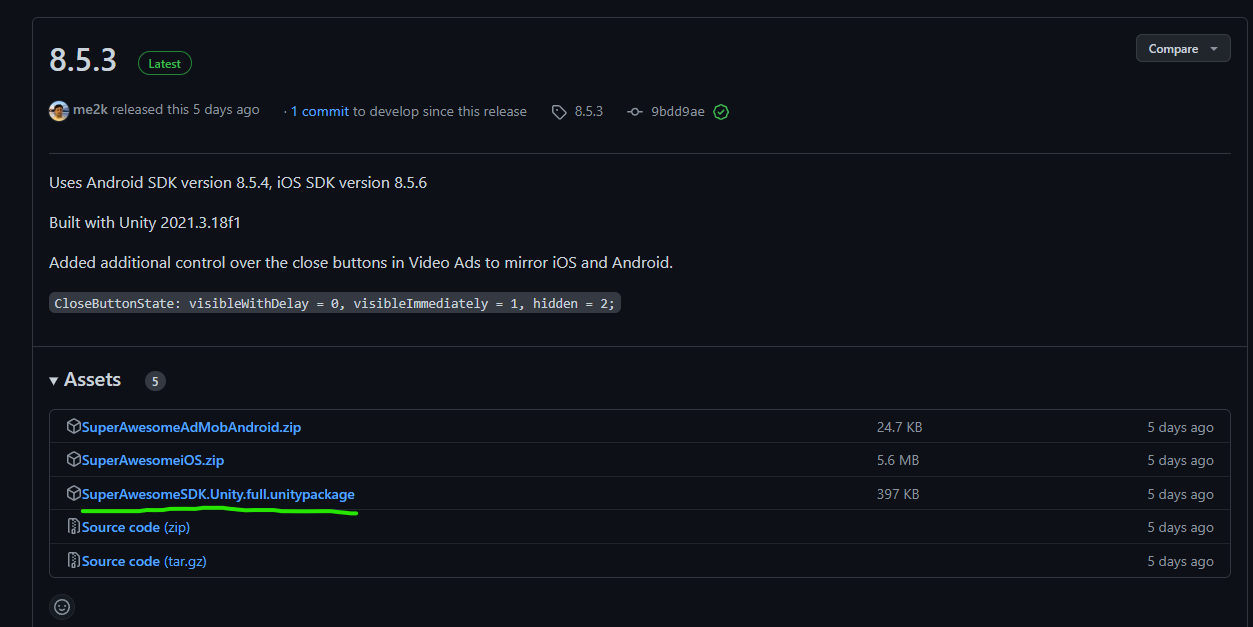
- Download and Import Unity package SA 8.5.3 (higher versions should work the same way )
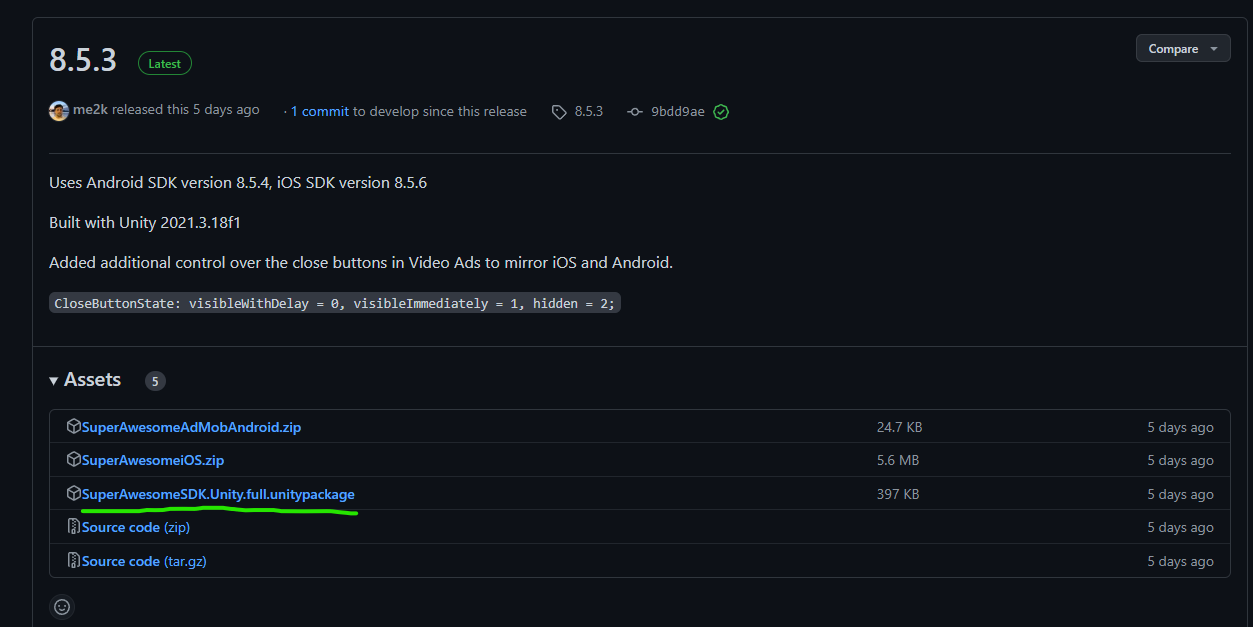
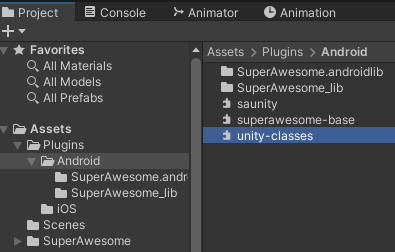
- Depending on the Unity version delete unity-classes.jar file from the Plugins/Android folder if it causes duplicated method issues. In Unity 2021.3.18 it needs to be deleted.

- Create a script that will handle the initialization and launching of the SA ads that contain the following code. The script is a tweaked version of the one from the Interstitials
tutoriatutorialusing tv.superawesome.sdk.publisher; using UnityEngine; public class MainScript : MonoBehaviour { private const int PlacementId = 53856;//30473 private void Awake() { AwesomeAds.init(true); } private void Start() { // set configuration production SAInterstitialAd.setConfigurationProduction(); // to display test ads SAInterstitialAd.enableTestMode(); // lock orientation to portrait or landscape SAInterstitialAd.setOrientationPortrait(); // enable or disable the android back button SAInterstitialAd.enableBackButton(); //set callbacks so we play an ad only after it's loaded SetCallbacks(); } public void PlayInterstitial() { // start loading ad data for a placement SAInterstitialAd.load(PlacementId); Debug.Log("Try to play ad..."); } private void SetCallbacks() { SAInterstitialAd.setCallback(SAInterstialAd_OnCallback); } private void SAInterstialAd_OnCallback(int placementId, SAEvent eventType) { Debug.Log($"Handling Interstitial callback for id {placementId}..."); switch (eventType) { case SAEvent.adLoaded: // called when an ad has finished loading Debug.Log("Ad loaded callback..."); SAInterstitialAd.play(PlacementId); break; case SAEvent.adEmpty: // called when the request was successful but the server returned no ad Debug.LogWarning("Ad empty callback..."); break; case SAEvent.adFailedToLoad: // called when an ad could not be loaded Debug.LogWarning("Ad failed to load callback..."); break; case SAEvent.adShown: // called when an ad is first shown Debug.Log("Ad shown callback..."); break; case SAEvent.adFailedToShow: // called when an ad fails to show Debug.LogWarning("Ad failed to show callback..."); break; case SAEvent.adClicked: // called when an ad is clicked Debug.Log("Ad clicked callback..."); break; case SAEvent.adEnded: // called when a video ad has ended playing (but hasn't yet closed) Debug.Log("Ad ended callback..."); break; case SAEvent.adClosed: // called when a fullscreen ad is closed Debug.Log("Ad closed callback..."); break; } } } - Call the PlayInterstitial() method from the above script via a button from the scene.
The following sections are automated in our projects
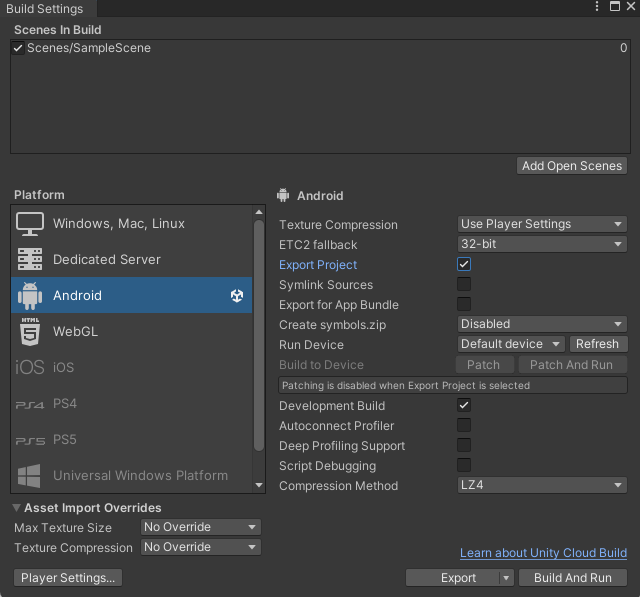
- In Build Settings activate the Export Project checkbox and click Export.
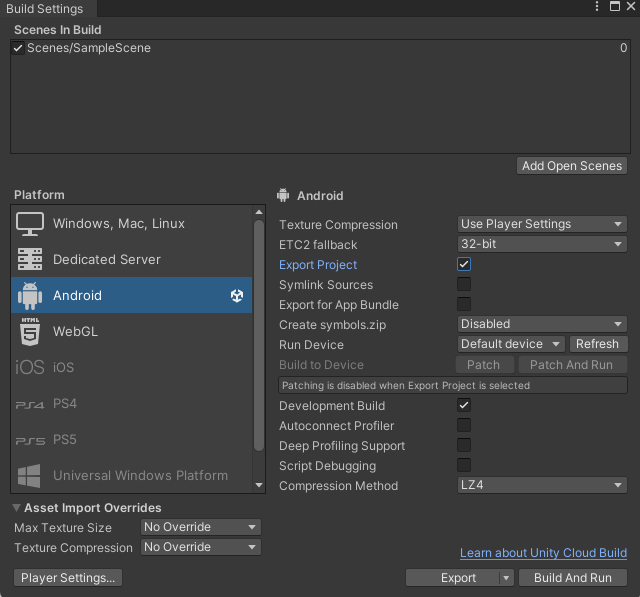
- Open the exported project in Android Studio (if asked use Android SDK )
-
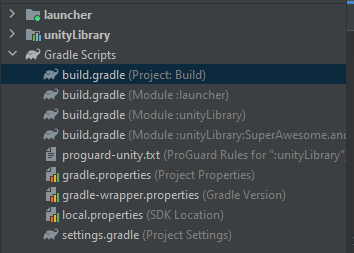
Open the Gradle file of the project ( here the project was in the Build folder )
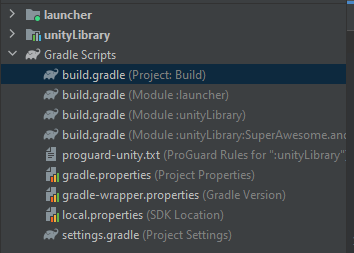
- Add
the missingmavenCentral()repositoryandinto thekotlinrepositoriesclass(pathlineto4 andGradle Scripts ->20)build.gradle(Project: Export): -
allprojects { buildscript { repositories { mavenCentral() google() jcenter() } dependencies { // If you are changing the Android Gradle Plugin version, make sure it is compatible with the Gradle version preinstalled with Unity // See which Gradle version is preinstalled with Unity here https://docs.unity3d.com/Manual/android-gradle-overview.html // See official Gradle and Android Gradle Plugin compatibility table here https://developer.android.com/studio/releases/gradle-plugin#updating-gradle // To specify a custom Gradle version in Unity, go do "Preferences > External Tools", uncheck "Gradle Installed with Unity (recommended)" and specify a path to a custom Gradle version classpath 'com.android.tools.build:gradle:4.0.1' classpath 'org.jetbrains.kotlin:kotlin-gradle-plugin:1.6.20' } } repositories { mavenCentral() google() jcenter() flatDir { dirs "${project(':unityLibrary').projectDir}/libs" } } } task clean(type: Delete) { delete rootProject.buildDir } InOpen the
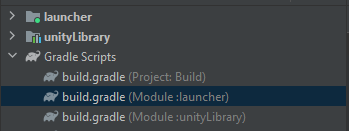
exportedprojectbuild.gradle(Modulein:launcher)AndroidStudiofile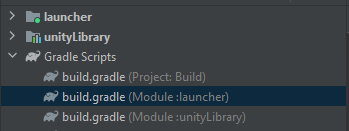
add- Add the missing directive
toat the top of the script (radleline2Scripts ->)build.gradle(Module: Export.launcher):
apply plugin: 'kotlin-android'
- Click the S
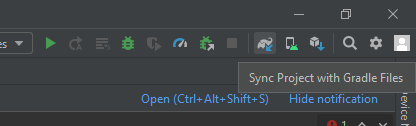
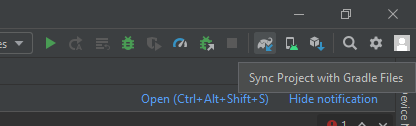
syncyncprojectProject withgradleGradlefilesFilesbutton(elephant-looking icon on the top right side of the screen)button and wait for Android Studio to download/import all the required packages.
- Go back to Unity, click Export again then Build or Build & Run and ads should be working when clicking the button.
Note: Steps 6 -> 10 are currently done automatically by two post processor scripts created by us. If you delete the package in order to upgrade it you should add back those two scripts afterwards! In later versions these scripts might be included in the package, in which case you don't have to re-add them.