
Android
The test was done in Unity version is 2021.3.18 but it should be working with Unity version 2020.
- Create an empty project
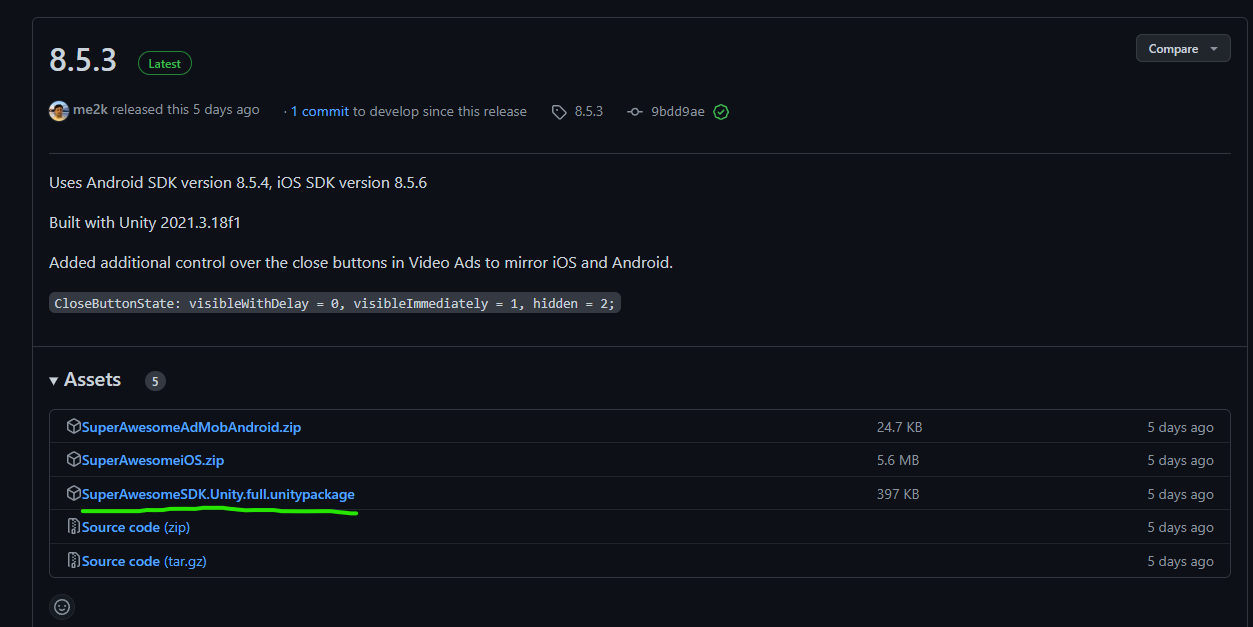
- Download and Import Unity package SA 8.5.3 (higher versions should work the same way )
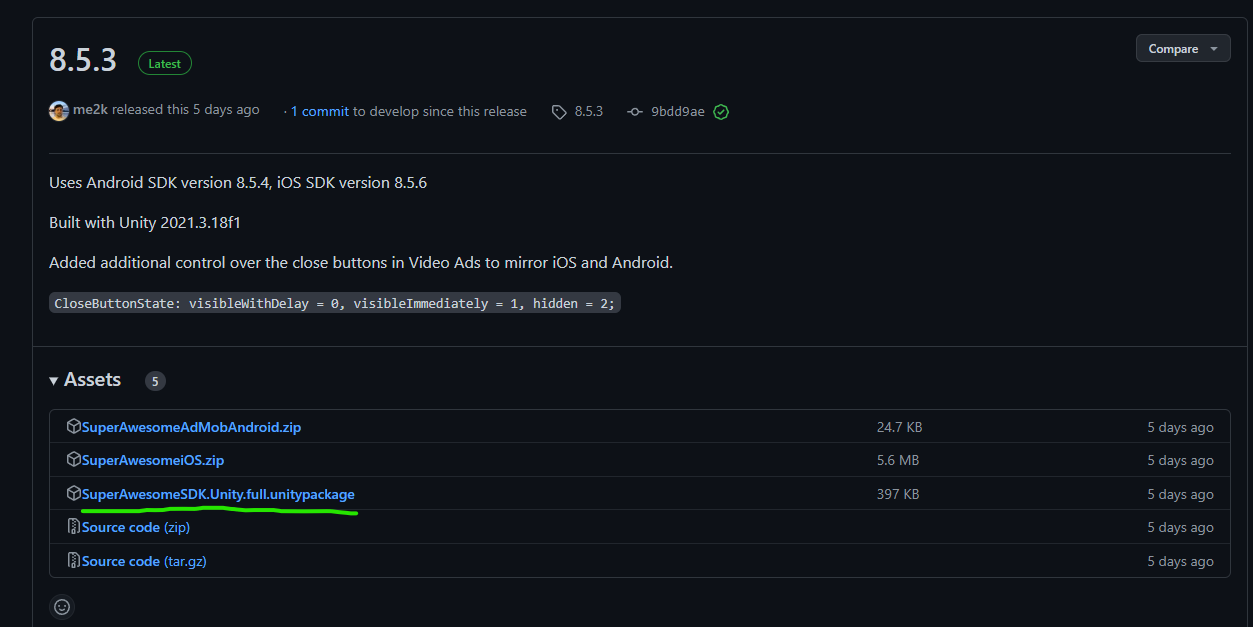
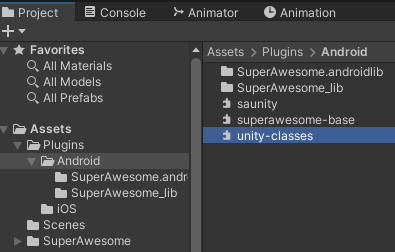
- Depending on the Unity version delete unity-classes.jar file from the Plugins/Android folder if it causes duplicated method issues. In Unity 2021.3.18 it needs to be deleted.

- Create a script that will handle the initialization and launching of the SA ads that contain the following code. The script is a tweaked version of the one from the Interstitials tutorial
In line 6 add your Placement IDusing tv.superawesome.sdk.publisher; using UnityEngine; public class MainScript : MonoBehaviour { private const int PlacementId = 30473; private void Awake() { AwesomeAds.init(true); } private void Start() { // set configuration production SAInterstitialAd.setConfigurationProduction(); // to display test ads SAInterstitialAd.enableTestMode(); // lock orientation to portrait or landscape SAInterstitialAd.setOrientationPortrait(); // enable or disable the android back button SAInterstitialAd.enableBackButton(); //set callbacks so we play an ad only after it's loaded SetCallbacks(); } public void PlayInterstitial() { // start loading ad data for a placement SAInterstitialAd.load(PlacementId); Debug.Log("Try to play ad..."); } private void SetCallbacks() { SAInterstitialAd.setCallback(SAInterstialAd_OnCallback); } private void SAInterstialAd_OnCallback(int placementId, SAEvent eventType) { Debug.Log($"Handling Interstitial callback for id {placementId}..."); switch (eventType) { case SAEvent.adLoaded: // called when an ad has finished loading Debug.Log("Ad loaded callback..."); SAInterstitialAd.play(PlacementId); break; case SAEvent.adEmpty: // called when the request was successful but the server returned no ad Debug.LogWarning("Ad empty callback..."); break; case SAEvent.adFailedToLoad: // called when an ad could not be loaded Debug.LogWarning("Ad failed to load callback..."); break; case SAEvent.adShown: // called when an ad is first shown Debug.Log("Ad shown callback..."); break; case SAEvent.adFailedToShow: // called when an ad fails to show Debug.LogWarning("Ad failed to show callback..."); break; case SAEvent.adClicked: // called when an ad is clicked Debug.Log("Ad clicked callback..."); break; case SAEvent.adEnded: // called when a video ad has ended playing (but hasn't yet closed) Debug.Log("Ad ended callback..."); break; case SAEvent.adClosed: // called when a fullscreen ad is closed Debug.Log("Ad closed callback..."); break; } } } - Call the PlayInterstitial() method from the above script via a button from the scene.
The following sections are automated in our main projects
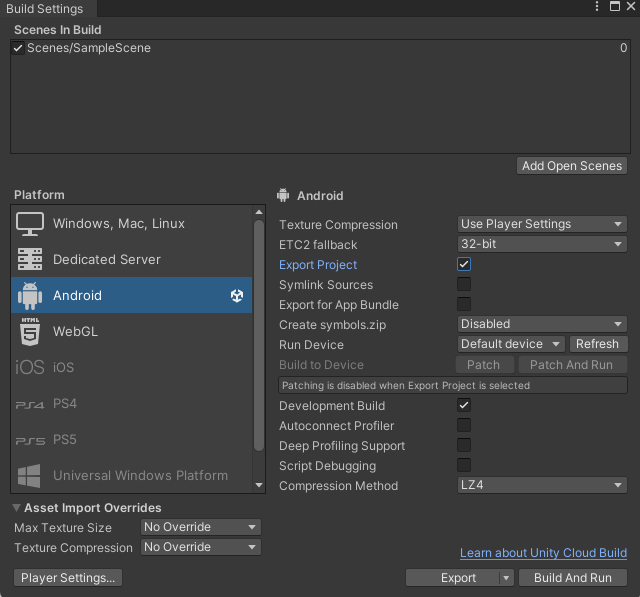
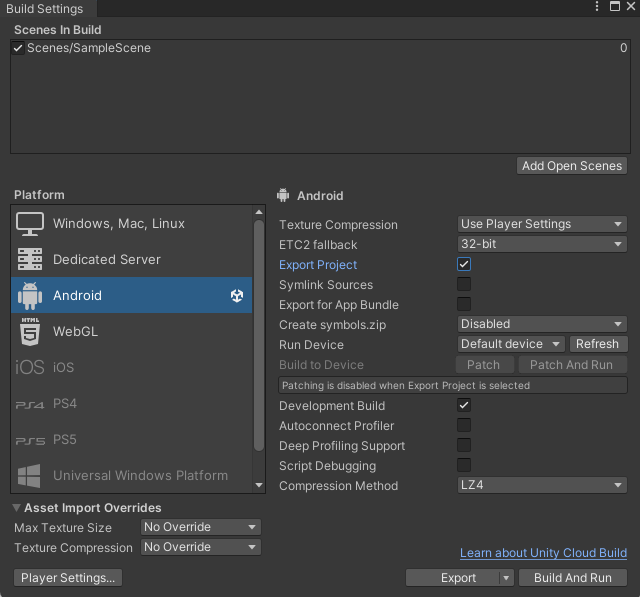
- In Build Settings activate the Export Project checkbox and click Export.
- Open the exported project in Android Studio (if asked use Android SDK )
-
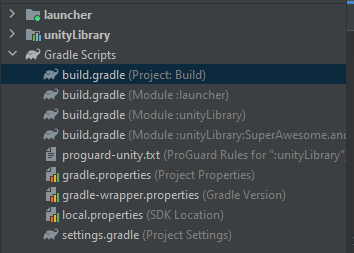
Open the Gradle file of the project ( here the project was in the Build folder )
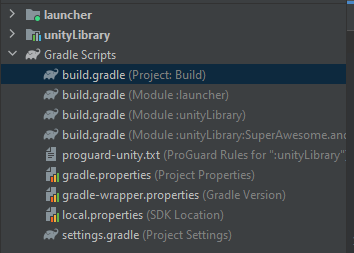
- Add mavenCentral() into the repositories on lines 4 and 20
- Add classpath "org.jetbrains.kotlin:kotlin-gradle-plugin:1.6.20" to line 15
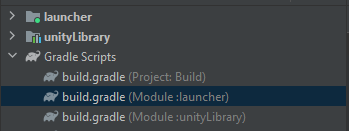
allprojects { buildscript { repositories { mavenCentral() google() jcenter() } dependencies { // If you are changing the Android Gradle Plugin version, make sure it is compatible with the Gradle version preinstalled with Unity // See which Gradle version is preinstalled with Unity here https://docs.unity3d.com/Manual/android-gradle-overview.html // See official Gradle and Android Gradle Plugin compatibility table here https://developer.android.com/studio/releases/gradle-plugin#updating-gradle // To specify a custom Gradle version in Unity, go do "Preferences > External Tools", uncheck "Gradle Installed with Unity (recommended)" and specify a path to a custom Gradle version classpath 'com.android.tools.build:gradle:4.0.1' classpath 'org.jetbrains.kotlin:kotlin-gradle-plugin:1.6.20' } } repositories { mavenCentral() google() jcenter() flatDir { dirs "${project(':unityLibrary').projectDir}/libs" } } } task clean(type: Delete) { delete rootProject.buildDir } - Open the build.gradle(Module :launcher) file
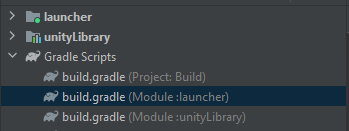
- Add the missing directive at the top of the script ( line2 )
apply plugin: 'kotlin-android'
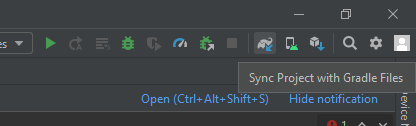
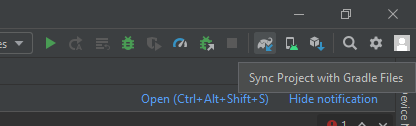
- Click the Sync Project with Gradle Files button and wait for Android Studio to download/import all the required packages.
- Go back to Unity, click Export again then Build or Build & Run and ads should be working when clicking the button.
No Comments